Playlist workflow
Preview the ordered list, select multiple videos, let them process in the background, and export completed results together.
Choose videos, process them in the background, and download the completed transcripts together.
Paste a public YouTube playlist link to see each video's title, thumbnail, and original order before you start. Choose only the videos you need, then let them continue processing even if you refresh or leave the page.
The short answer
Paste a public playlist link, review the videos in their original order, and select the ones you need. Previewing does not download video or audio. Only completed transcripts count toward your available uses, and you can open them individually or download them together.
How it works
Use a public YouTube playlist link or any YouTube video link that belongs to a playlist. You will see the playlist details before choosing which videos to process.
Check each title, thumbnail, and original position, then select all videos or any smaller combination. Before starting, you will see how many transcripts the selection can create.
The playlist keeps processing even if you leave the page. See which videos are waiting, ready, or unavailable, then open a finished transcript or download all completed results together.
A useful preview
A playlist can include private, removed, live, or caption-free videos. Seeing the list first helps you leave out anything irrelevant and understand what can be processed. The preview preserves the creator's order and never assumes that every video has captions.
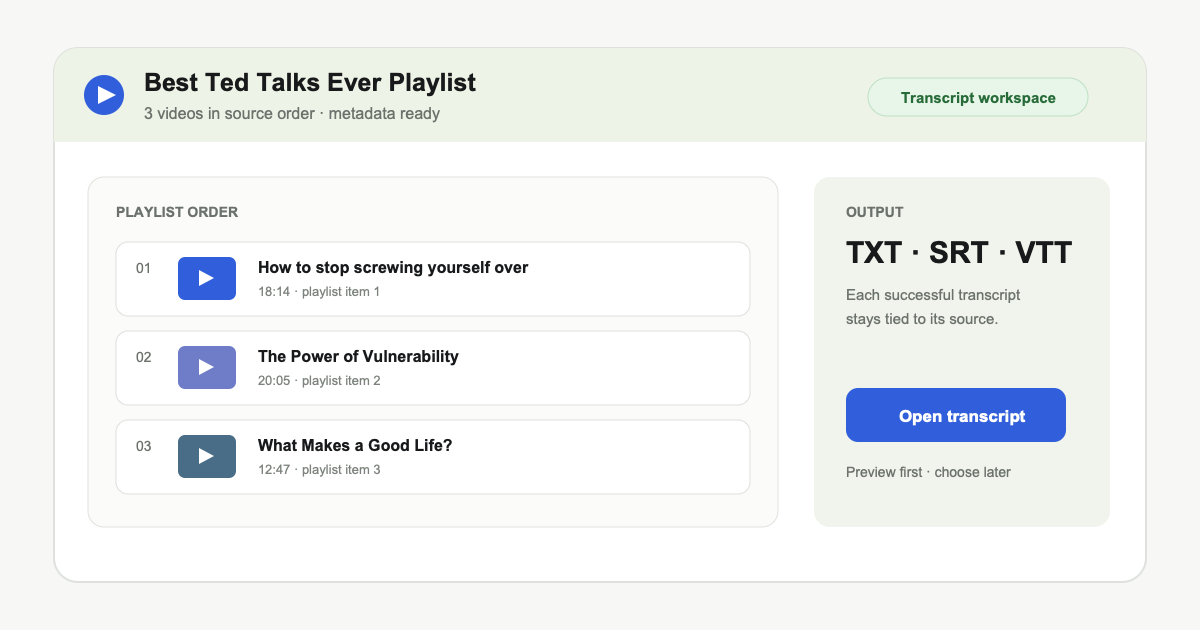
Best Ted Talks Ever Playlist
3 videos in source order
Export choices
Download every completed transcript in one combined TXT, or keep videos separate inside TXT, SRT, and VTT ZIP archives. Individual TXT downloads are available beside each completed video, while the full workspace provides search, copy, language checks, and timed formats.
One ordered text document for reading, research, and whole-playlist search.
Separate clean-text or numbered timed files for every completed video.
Separate WebVTT files for compatible players and browser caption workflows.
Free access and limits
You can preview a public playlist without an account. Creating transcripts uses the same free or paid access as the single-video tool, and a video that fails does not use one of your available transcripts. If your plan does not cover the whole selection, choose fewer videos or view the available plans before starting.
Select only the videos you need. Before you start, the page shows whether your current access covers the full selection.
Private, removed, restricted, live, or caption-free videos can fail even when they appear in a public playlist.
Your selected links and transcript results stay in your private workspace and are never displayed publicly.
Which tool should you use?
Use the playlist flow when you need to inspect or compare several entries. Use the single-video tool when one source is all you need and you want to start searching immediately.
Preview the ordered list, select multiple videos, let them process in the background, and export completed results together.
Paste one video link and go straight to search, copy, language selection, and download.
Each successful selected video becomes a normal transcript job, appears in Videos history, and opens in the same private workspace.
Use the playlist workflow for a course, interview series, research collection, or any public playlist where you need several transcripts without processing every video.
FAQ
Clear answers about free access, playlist limits, captions, privacy, and file formats.
You can preview a public playlist for free. Creating transcripts uses the same free or paid access as the single-video tool, and only completed transcripts count.
Yes. Select all, deselect all, or choose any combination before starting. Repeated videos are removed automatically.
You can preview up to 50 public videos at a time. For a larger playlist, split it into smaller public playlists or process the most relevant videos first.
That video is skipped and does not count as a completed transcript, while the other selected videos continue processing.
Yes. Download one combined TXT, separate TXT, SRT, or VTT files in format-specific ZIP archives, or an individual TXT beside a completed video.
No. The tool reads public playlist details and available captions. It does not download or store YouTube video or audio files.
Yes. Your playlist links and transcript results stay in your private workspace and are never displayed publicly.
Start with a playlist
Paste a public playlist, select the videos you need, and let the Playlist Workspace prepare them for individual or combined download.